
A two-minute setup
How to add a daily quote widget to your iPhone
Put a daily card on your Home Screen or Lock Screen with the Ikigai Daily iPhone widget. Follow these steps to add and configure it.
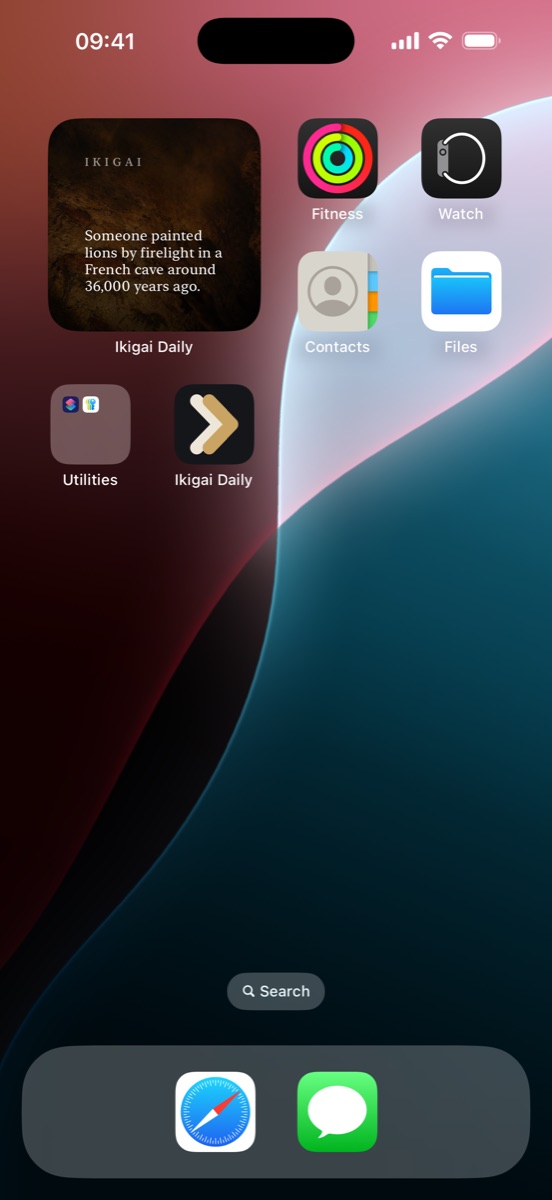
Home Screen
Keep the next idea among the apps you already use.
Install Ikigai Daily and open it once, then:
- Touch and hold an empty area of the Home Screen until the apps begin to move.
- Tap Edit in the top-left corner, then tap Add Widget.
- Search for Ikigai Daily and select it from the widget list.
- Choose a widget size, tap Add Widget, position it and tap Done.
Lock Screen
Meet the day before you unlock it.
For a daily quote on the Lock Screen:
- Touch and hold the Lock Screen, then tap Customize.
- Choose Lock Screen and tap the Add Widgets area.
- Select Ikigai Daily, choose the widget and place it in the available row.
- Close the widget panel, then tap Done to save the Lock Screen.
Make it yours
The widget is the surface. The choices live inside the app.
Open Ikigai Daily to choose Drive, Stillness or Wonder, refine the subjects in your mix and set how often a new card should arrive. Widgets and notifications work separately, so you can use either one or both.
- Choose the mood you want more of
- Include or exclude subjects
- Set between one and ten daily notifications
- Open any widget card for its context and source
If the widget does not appear
Three quick checks.
Open the app once
Confirm Ikigai Daily is installed and launch it before returning to the widget gallery.
Check for updates
Install the latest Ikigai Daily and iOS updates available for your iPhone.
Try the gallery again
Close the widget picker, wait a moment and search for Ikigai Daily once more.
Your daily card
Now give it a place to appear.
Ikigai Daily is free for iPhone, with no account and no subscription.